Hyperlinks Stop Working!
When you've created a large presentation with many internal hyperlinks you might suddenly find they stop working. Powerpoint has limited storage for internal hyperlinks (64k) and this space is also used for other things so is effectively smaller. Hyperlinks are stored in a format that includes the slide title of the target slide so you might gain a little space by hyperlinking to "dummy" slides with super short titles e.g. "A"! and giving them an auto transition to the real target.
If this fails though vba is the answer.
Simple answer!
Give the hyperlink button code like:
Sub jumper()
ActivePresentation.SlideShowWindow.View.GotoSlide (4)
End Sub
The problem with this is you have to individually code each button which is tedious and also if you move slides around or add / delete slides the links will fail.
More Complex
Sub hyper(oshp As Shape)
On Error GoTo errorhandler
Dim stext As Integer
If oshp.HasTextFrame And oshp.TextFrame.HasText Then
stext = Val(oshp.TextFrame.TextRange)
ActivePresentation.SlideShowWindow.View.GotoSlide (stext)
End If
Exit Sub
errorhandler:
MsgBox ("Sorry, there's been an error")
End Sub
Type the slide number onto the button, give it an action setting of run macro "hyper" and this code will read the number and jump to that slide.
As above moving slides will confuse it!
Proper Job!
Sub jumper2(oshp As Shape)
On Error GoTo errorhandler
Dim sID As String
sID = oshp.AlternativeText
With oshp.ActionSettings(ppMouseClick)
.Action = ppActionHyperlink
.Hyperlink.SubAddress = sID & ",,"
.Hyperlink.Follow
.Hyperlink.Delete
End With
Exit Sub
errorhandler:
MsgBox ("Sorry there's been an error!")
End Sub
Sub pickupID()
Dim Iid As Integer
If ActiveWindow.Selection.ShapeRange.Count > 1 Then
MsgBox ("Select one item only!")
Exit Sub
End If
If ActiveWindow.Selection.ShapeRange.Count < 1 Then
MsgBox ("Select something")
Exit Sub
End If
On Error GoTo errorhandler
With ActiveWindow.Selection.SlideRange
Iid = .SlideID
End With
With ActiveWindow.Selection.ShapeRange
.AlternativeText = Iid
End With
Exit Sub
errorhandler:
MsgBox ("Sorry there's been an error!")
End Sub
To use, insert a button on to the TARGET slide for the hyperlink. Make sure the button is selected and run the code "pickupID". Now give the button an action setting to run macro "jumper2".
This button can now be cut and pasted onto any slide you want to hyperlink FROM.

Running the macro
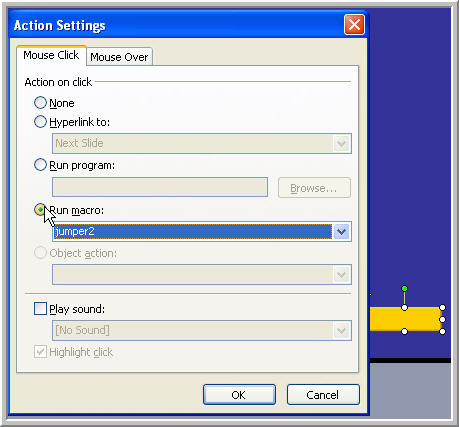
Action settings
Using vba in Powerpoint
Open the vba editor from tools > macro > vba editor or press alt + f11. If the project explorer is not already open press ctrl R. Now insert a module and copy and paste the code into it.
In edit mode to run the code "pickupID" select the shape or button and go to tools>macro>macros. You can also press alt + f8.
To select Action Settings go to Slide show >Action settings.
www.technologytrish.co.uk home
While we make every effort to verify the accuracy of all information Technology Trish Ltd cannot be held responsible for any damage to files. It is good practice to work on a copy of the file.